Ham radio recording app
Record and Review Ham Radio QSOs on iPhone
During a voice QSO, it is easy to miss a callsign or signal report while listening and talking. QSO Transcriber records the conversation on your iPhone, shows a live transcript and lets you replay the original audio. Check the suggested contact details before saving them to your log.
Why keep a QSO recording?
I’m Poul, OV9PL. I developed QSO Transcriber because listening, talking and taking notes during a QSO could be difficult to manage at once. A recording gives me time to check details afterwards.
- Keep an interesting DX contact. Revisit the voices and conditions of a memorable exchange.
- Check a missed callsign. Replay the phonetics before updating your log.
- Confirm a report or detail. Compare a signal report or other detail with the audio.
- Review a POTA session. Review contacts after packing away the portable station.
- Learn from earlier conversations. Listen again to the pacing and operating phrases.
- Keep the original exchange. Store the original audio alongside your QSO notes.
Listen, Record and Collect QSO Details
Follow the Conversation While Recording
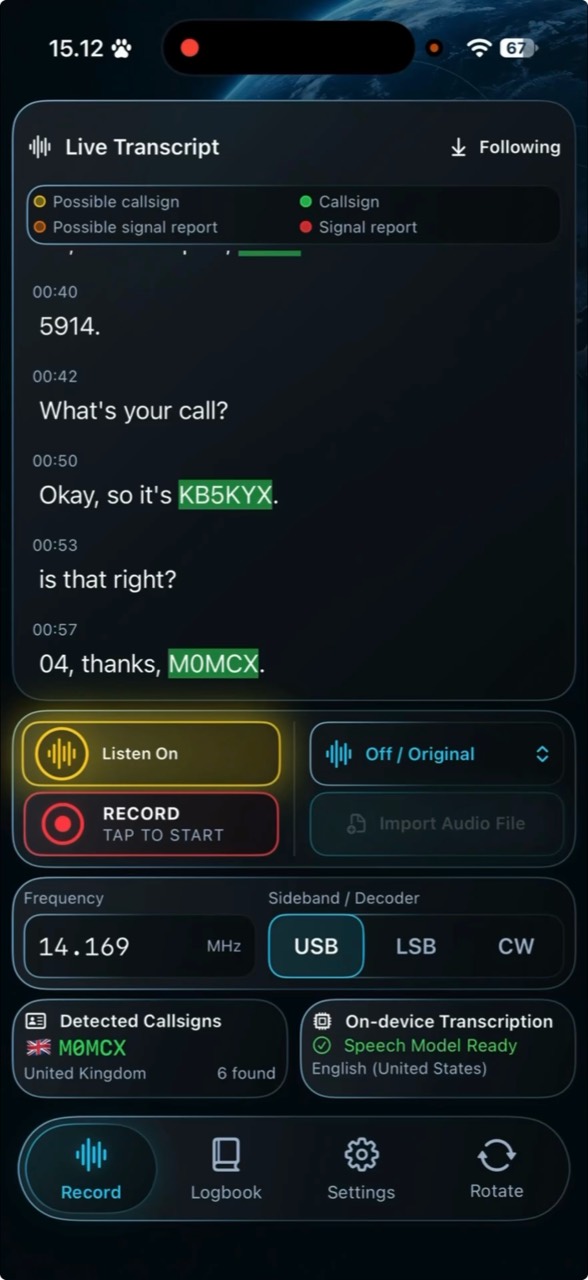
Listen displays temporary live text without saving audio or a transcript. Choose Record to save a new recording and transcript from the moment you start it.
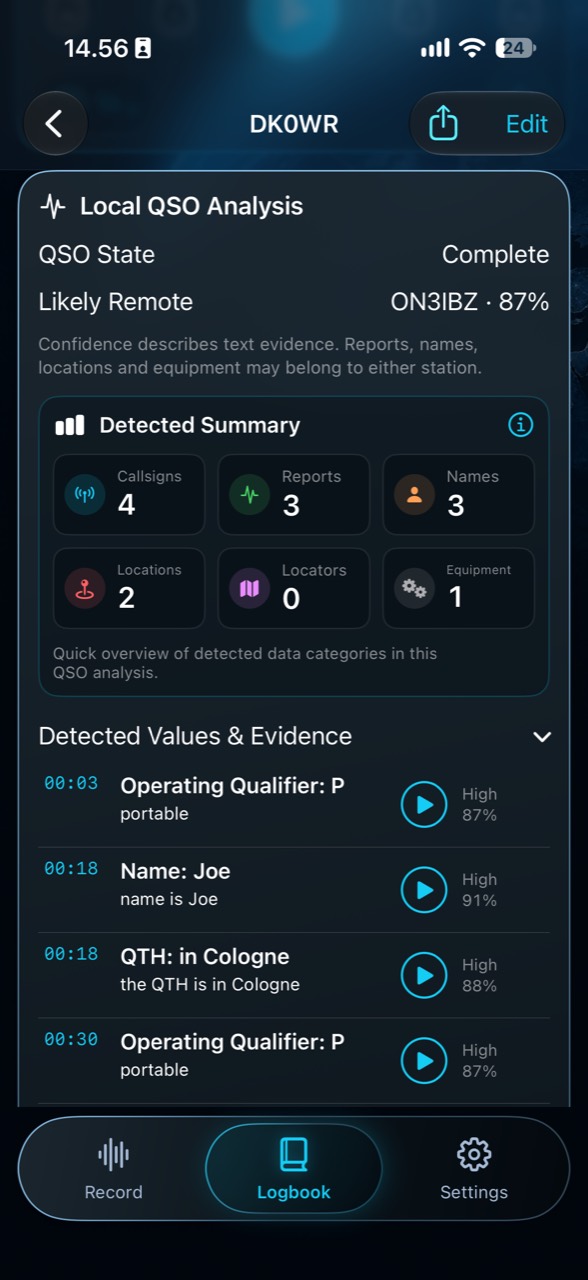
The app highlights possible callsigns and signal reports. Local QSO analysis also suggests operator names, locations (QTH), grid locators, power and equipment details mentioned in the conversation, such as radios and antennas.
Review the suggested details against the recording before saving. Details may refer to either station.
Replay and Review Recorded Conversations
This walkthrough shows audio import, speech transcription and review of the suggested contact details.
Where transcript timing is available, select a passage to return to that point in the audio, then replay uncertain words.
Checking callsign suggestions
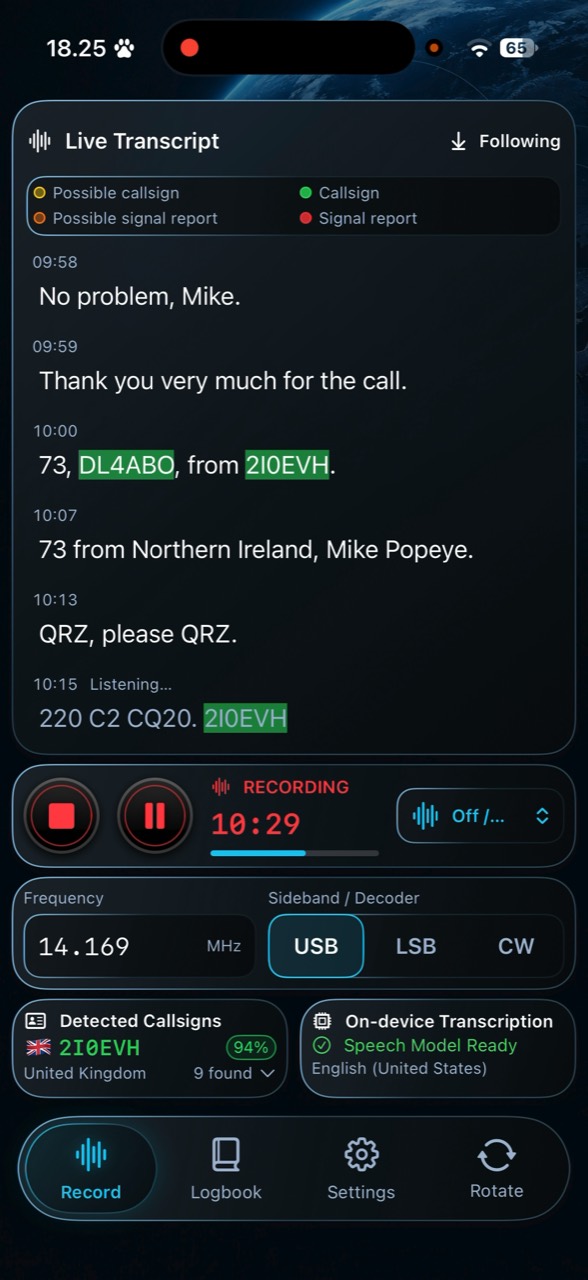
The introduction with Alan, 2I0EVH, shows a real conversation and a callsign correction afterwards.
Callsign recognition relies on the speech transcript. A highlight or confidence indicator does not verify a station.
How to Record a Ham Radio QSO
Step 1 – Open QSO Transcriber
Open QSO Transcriber and prepare your radio. Download the Apple speech model for your chosen language if needed.
Step 2 – Start Recording
Place the iPhone near the radio’s speaker, avoiding distorted audio. Choose Record before the exchange begins.
Step 3 – Follow the Conversation
Use the live transcript as a listening aid. Callsigns and signal reports are suggestions for later review.
Step 4 – Replay and Check
Replay uncertain passages and correct the proposed contact fields. Check frequency, mode and UTC dates and times.
Step 5 – Save and Export
Save the reviewed contact in your logbook. Export checked contact details as ADIF, or available audio and transcripts as a ZIP through the iPhone share sheet.
Listen is temporary. It displays live text without saving audio or a transcript. Record preserves a new recording from the moment it starts; it cannot recover earlier Listen audio or text.
Audio, transcripts and your QSO log
Recording, speech transcription and logging are separate steps. The transcript helps you find details; you decide which checked details belong in the log.
Original QSO audio
Keep the captured exchange for later listening.
Live speech transcription
Follow speech as text while the QSO is in progress.
Callsign and report suggestions
Treat highlighted callsigns and signal reports as suggestions to check.
Replay and review
Use the recording to check uncertain words.
Existing audio imports
Import supported audio such as MP3, M4A, WAV or CAF.
Reviewed QSO details
Save checked contact fields in the local logbook.
ADIF log data
Export checked contacts for other logging software.
Audio and text ZIP
Keep available audio, transcripts and QSO data in one archive.
On-device processing
Apple speech recognition and QSO analysis run locally on your iPhone.
Ham radio transcription can struggle with QRM, QSB, accents and phonetic callsigns. A readable transcript can still be wrong.
Corrections leave the original recording and raw transcript intact. The full recording and review walkthrough explains the process.
At the station, on POTA and while listening
Shortwave Listening
Keep shortwave voice recordings and notes for later listening.
Frequently Asked Questions
Can I record ham radio conversations on my iPhone?
Yes. Place the iPhone where its microphone can hear the radio clearly, then choose Record before the exchange begins.
Can I replay a QSO to check a callsign?
Yes. Replay the saved audio and compare the spoken callsign with the suggestion before updating your log.
Does QSO Transcriber automatically recognise callsigns?
It suggests possible callsigns from the transcript. Letters and phonetics can be misheard, so check each suggestion against the audio.
Can I export my QSO log as ADIF?
Yes. Check the required contact fields, then export your QSO log as ADIF.
For audio and text, export a ZIP containing the available original audio, raw, enhanced and corrected transcripts, and QSO data. Keep it for yourself or share a memorable QSO with fellow operators.
Can I import existing ham radio recordings?
Yes. Import a supported file such as MP3, M4A, WAV or CAF, select Voice and choose Analyze Audio. Review the transcript alongside the original audio.
Does it work for POTA?
Yes, for recording, transcription and review. It does not automatically submit POTA logs or manage park references; use your usual activation workflow for those steps.
Are my recordings uploaded to a cloud server?
No. Speech recognition and QSO analysis run on your iPhone. Apple speech models may need a download first. When exporting, you choose where the copy goes. See the privacy information.
QSO Transcriber for iPhone
I’m developing QSO Transcriber as a fellow radio amateur. I hope it helps you check the details and keep the contacts you want to remember. 73, Poul · OV9PL.