Shortwave Listening
Hear it now. Revisit it later.
Shortwave listening is full of fleeting station IDs, unfamiliar accents and signals that fade at the wrong moment. QSO Transcriber lets you listen with live text support and return to recorded speech later.
This video shows KiwiSDR and QSO Transcriber running side by side.
With two phones or tablets, you can make SWL listening more visual and modern using devices you may already have in a drawer.
An older iPad can work well for KiwiSDR in a browser. For QSO Transcriber, use an iPhone 13 or newer running iOS 26 or later for good performance.
A two-device SWL setup
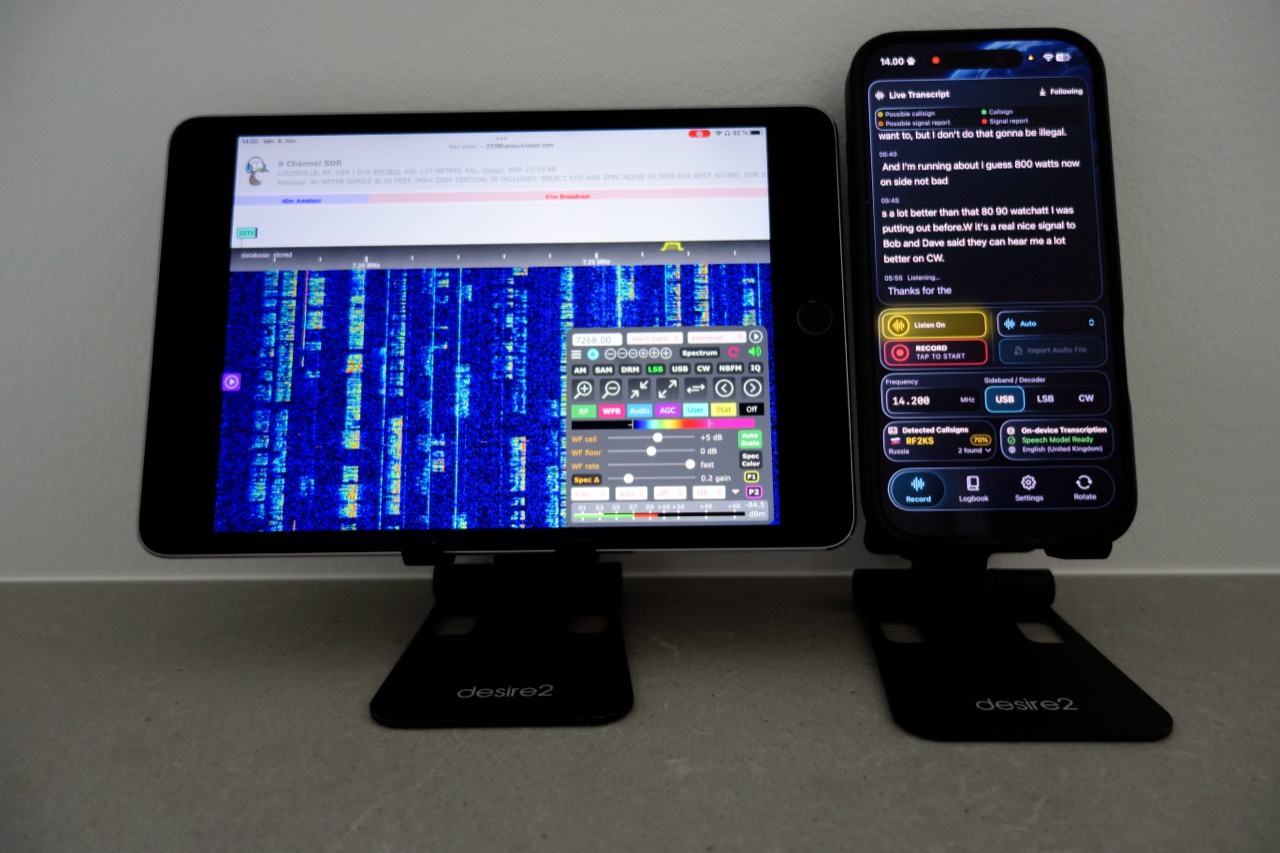
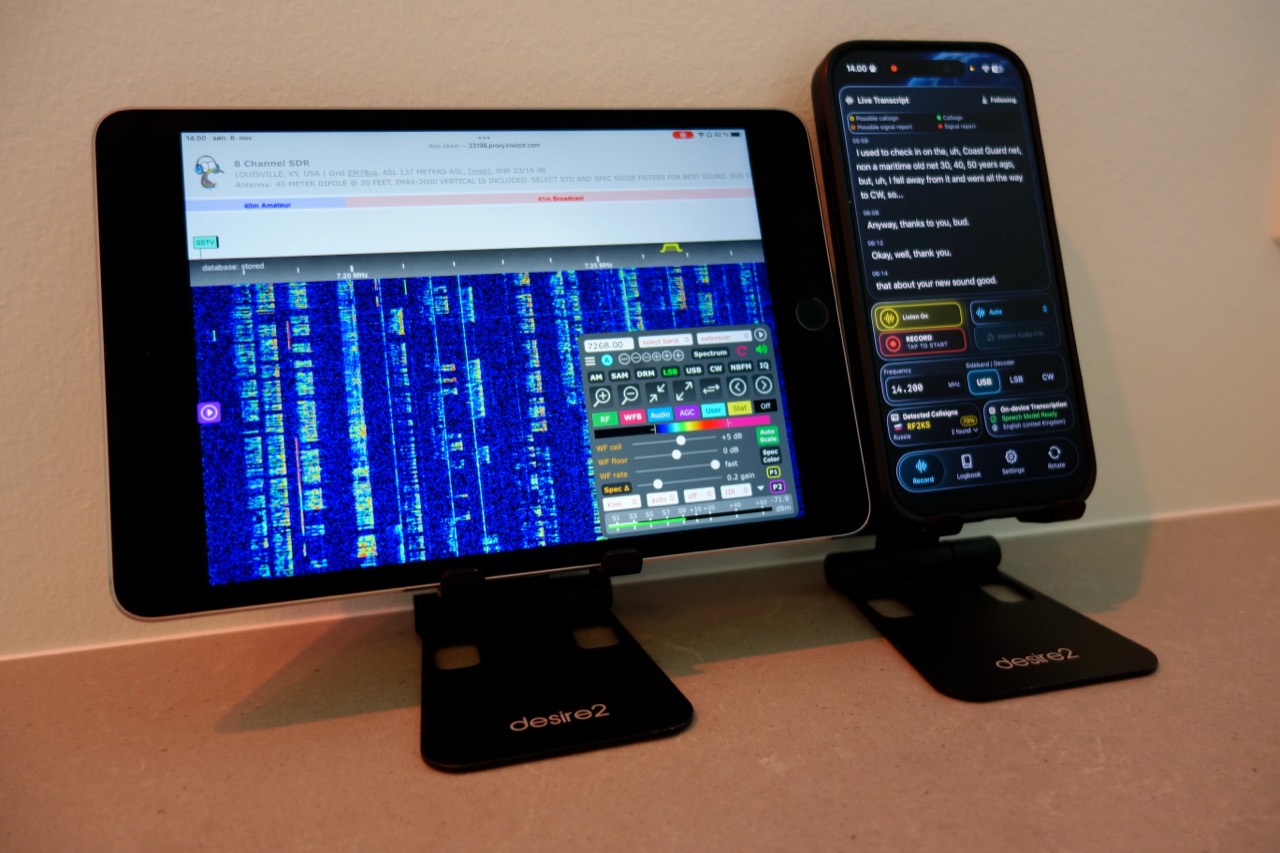
These photos show an older iPad mini 4 running KiwiSDR alongside a newer iPhone running QSO Transcriber.
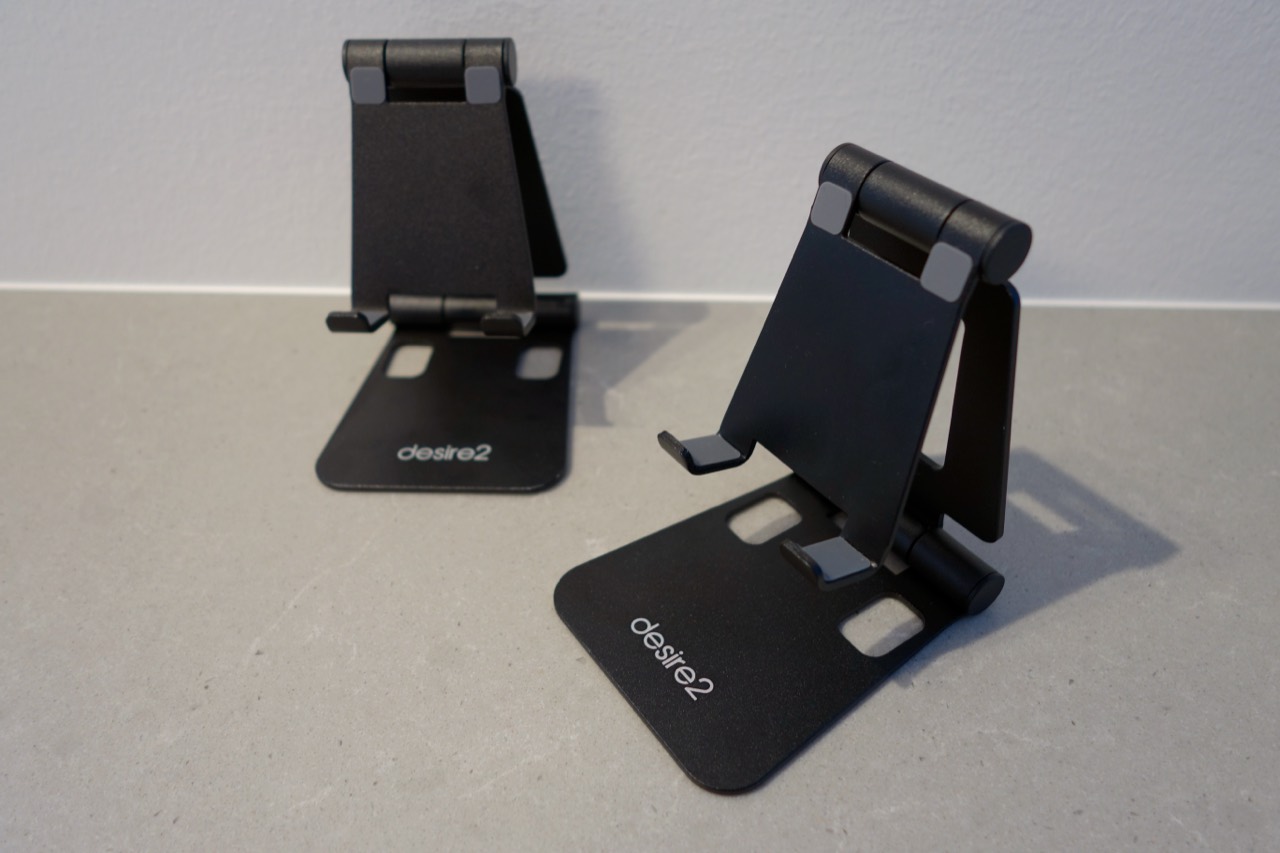
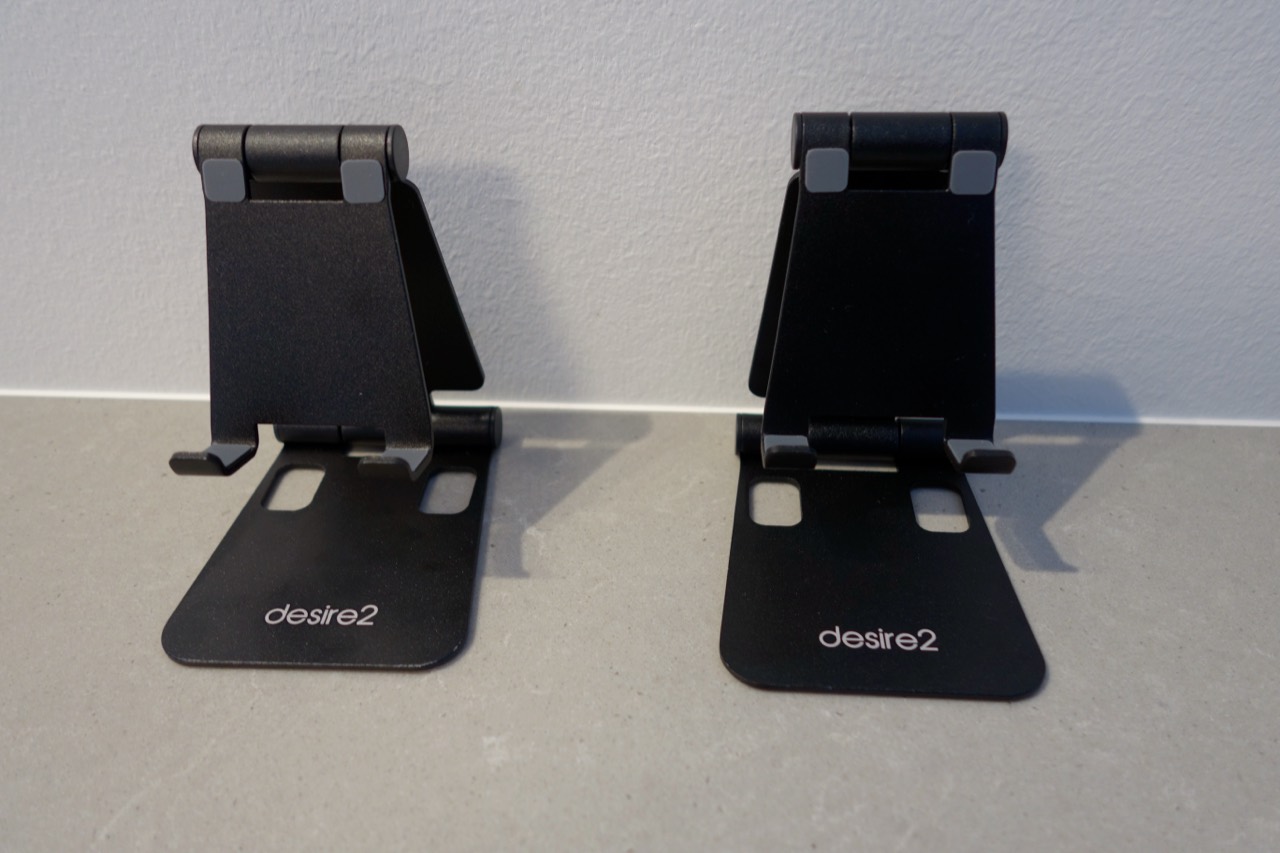
I paid about $10 for this type of phone and tablet stand. Similar holders are available in many shapes and models.
Why it helps
Read text alongside received speech
Choose a supported speech language and prepare its Apple model in Settings, then follow spoken shortwave content as text. Language and model availability depend on the iPhone and Apple’s current support; recognition is not equally reliable for every signal.
Keep the audio with the words
Record a listening session so you can return to the original sound and compare it with the transcript. Replay noisy or fading passages before deciding what a station said. Optional DeNoise may help speech transcription, but cannot restore missing words.
Review station IDs and amateur callsigns
QSO callsign suggestions are most relevant to amateur voice traffic. For international broadcasts, use the transcript to revisit spoken station names and programme details yourself. The app does not automatically identify broadcasters.
Listen without transmitting
Use a receiver or SDR’s audible output as the source, or bring an existing recording to the iPhone. You do not need to operate a transmitter to use the app as a listening companion. No direct SDR API or remote-stream recording integration is required or provided.
How to use it
Save and Replay QSO Recordings: a guide to keeping the original audio and checking the details.
- Tune a voice signal. Use your shortwave receiver or SDR to find spoken content and select a speech language with a ready on-device model.
- Bring the audio to the iPhone. Let it hear the receiver’s speaker, or import an existing MP3, M4A, WAV or CAF recording and choose Voice. The app does not connect to an SDR or record remote streams automatically.
- Transcribe the speech. For live audio, Listen shows temporary text without saving audio or a transcript. Use Record from the beginning to keep the sound and words. For an imported file, choose Analyze Audio, then review the transcript and original recording.
- Keep the session. Save the recording and export a ZIP archive with the original audio and available transcripts. For broadcasts, use this audio-and-text archive; ADIF is for amateur contacts with the required log fields.
Practical questions
Does it translate broadcasts or recognise every language?
No built-in translation is provided. Transcription writes recognised speech in the selected supported language. Results depend on model availability, accents and reception quality; no language or station is guaranteed to be recognised.
Will it identify a station through noise or fading?
Not reliably. Callsign analysis is primarily for amateur radio, and ordinary broadcast IDs need your review. Speech recognition may mishear names, phonetics and numbers. Check the original sound. DeNoise cannot recover speech that was never audible, and imported audio currently uses Off / Original.
Is there a dedicated SWL or SINPO logging mode?
No. These pages describe ways to use the existing recording, transcription and review tools. There is no dedicated SWL or SINPO mode, automatic broadcaster identification or SDR integration.
Use QSO Transcriber on your iPhone
A companion to your listening and operating skills. Check important details against the original audio before you save or export.
Explore other ways to use QSO Transcriber.
Photo credits
The SWL preview on the homepage uses a photo by Multicherry / Wikimedia Commons · CC BY 4.0. Filtered and retouched by Multicherry; resized for this site without cropping. The source also carries an embedded CC BY-SA 4.0 notice, retained for this version. No endorsement by the photographer is implied.
